1. Introduction
The Marketing Theme is a fully responsive, modern, and customizable HTML template designed for digital marketing agencies, SEO experts, and tech-driven marketing firms. It includes sections for showcasing services, portfolios, consultants, team members, blogs, FAQs, pricing, and contact forms.
1.1. What's Included
After purchasing wooprex template on wooprex.com with your Wooprex account, go to your Download page. You can choose to download wooprex template only or the entire wooprex template package which contains the following files:
- Fully Responsive Design: Optimized for all devices.
- Modern & Clean UI: Sleek, professional, and user-friendly design.
- Easy Customization: Modify styles, fonts, and colors easily.
- Cross-Browser Compatibility: Works on Chrome, Firefox, Safari, and Edge.
2. Folder & File Structure
2.1. Folder Structure
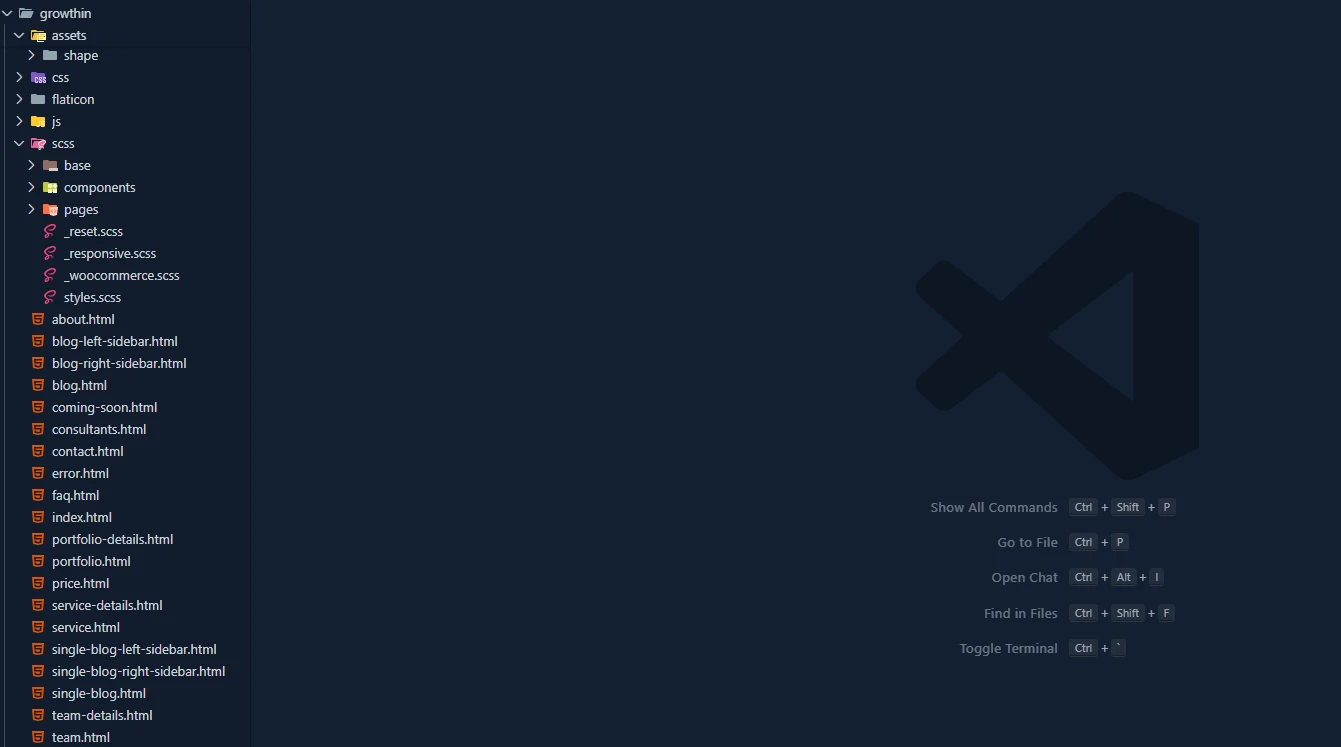
Here you will find the folder structure of the entire template (HTML, CSS, JS, SASS, and etc).
2.2. HTML Architecture
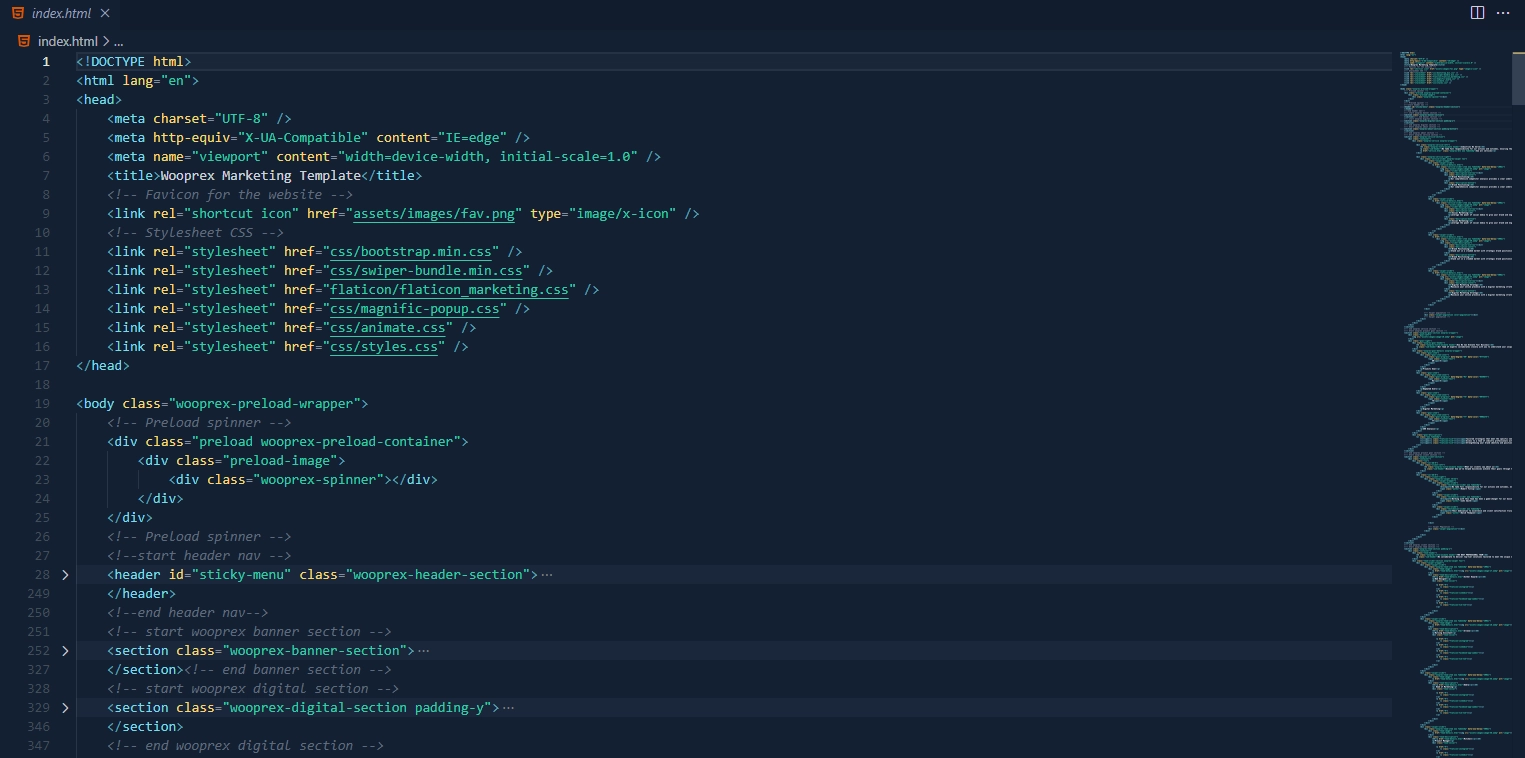
The main contents are inside the 'body' tag divided into differentt section (i.e. header, banner, services,... footer etc.). The general template structure is the same throughout the template. Here is the general structure:
2.3. SASS & CSS Architecture
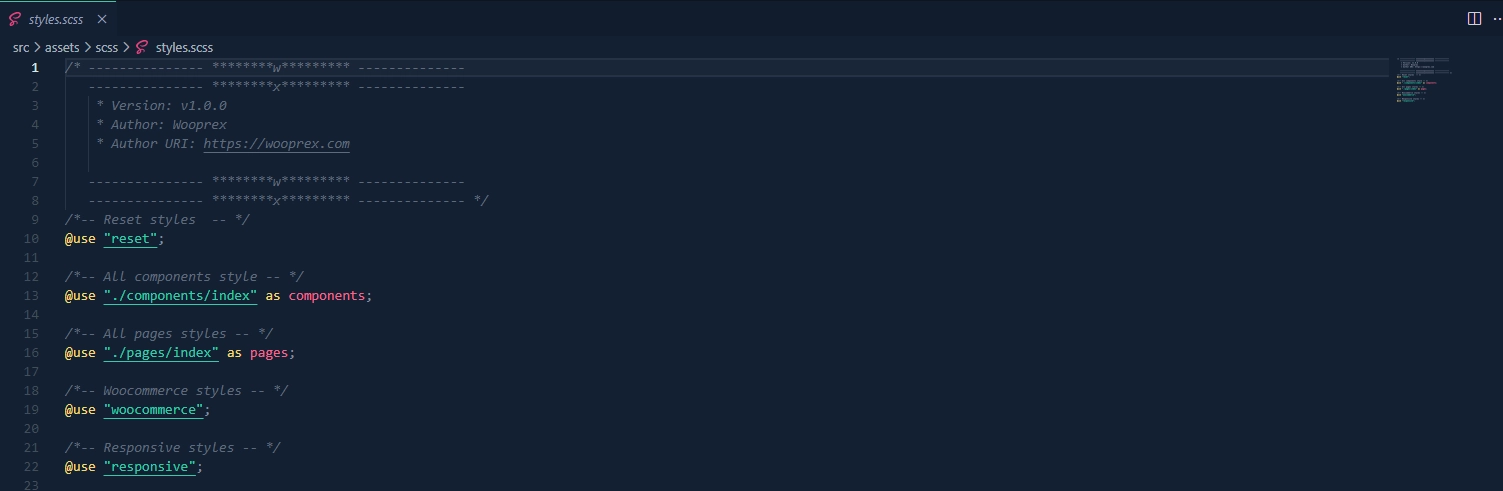
We are using SASS and the structure is given above already. Here is the outlook of the SASS file and these compiled to (styles.css) under assets/css/ folder
2.4. JavaScript Architecture
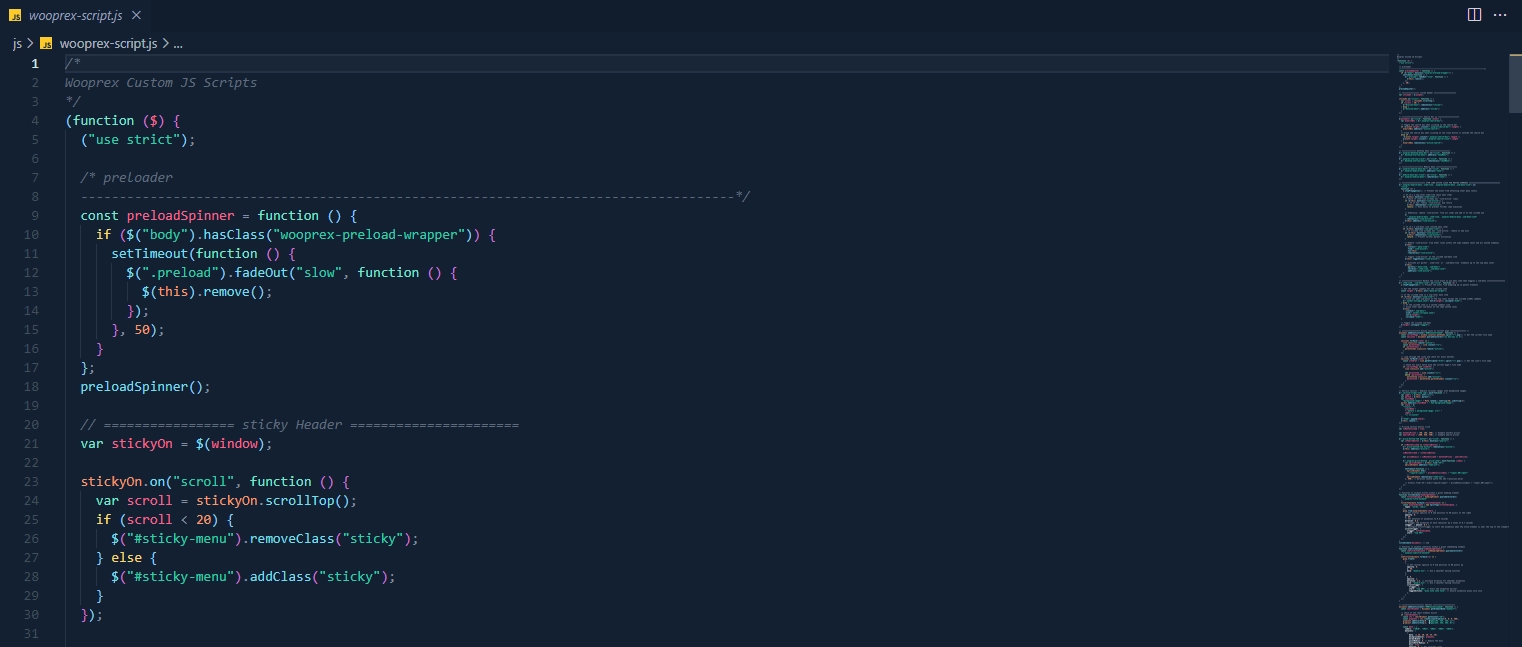
There is a file named "wooprex-script.js". The entire custom js has been written here. We used both vanila javaScript and JQuery plugin to customize. We also used so many libraries (Swiper, Gsap, CounterUp, Magnific Popup, SimpleParallax, and etc). The common structure is below:
3. Installation & Setup
Follow these steps for initialize the project:
- Download the template from the provided source.
- Extract the ZIP file and open the folder in your code editor.
- Open index.html in a browser to preview the template.
4. Customization Guide
4.1. Logo & Favicon
- 1. Open the folder images under assets folder
- 2. Look for the .svg file to change the logo
- 3. Replace your .svg logo with the current logo
- 4. Follow same steps for the site icon (.png) extension


4.2. Colors & Fonts
Modify assets/scss/abstracts/_variable.scss to change default color and declare the font:
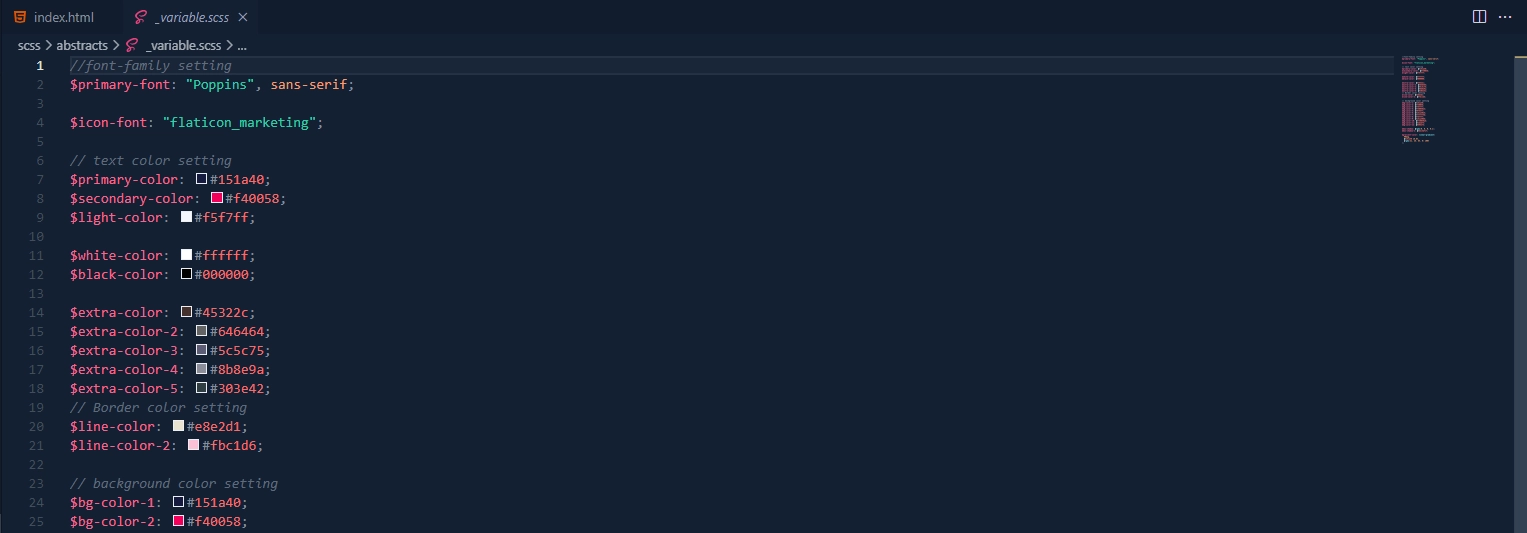
Modify assets/scss/abstracts/_fonts.scss to initialize google font:

4.3. Flaticon
We have used flaticon premium icon for the site. You can add icon like this:

4.4. Navigation Menu
Change Desktop menu:
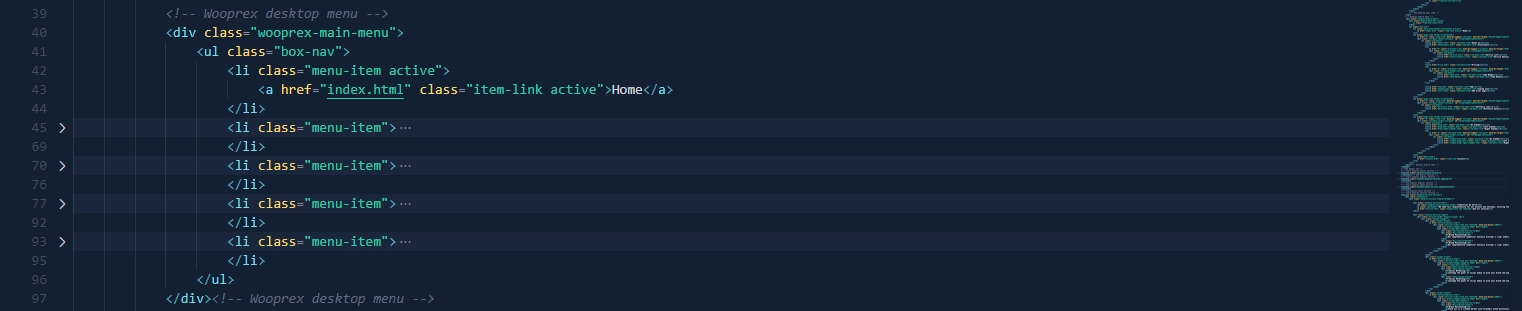
Change Desktop Overlay menu:

Change Mobile menu:
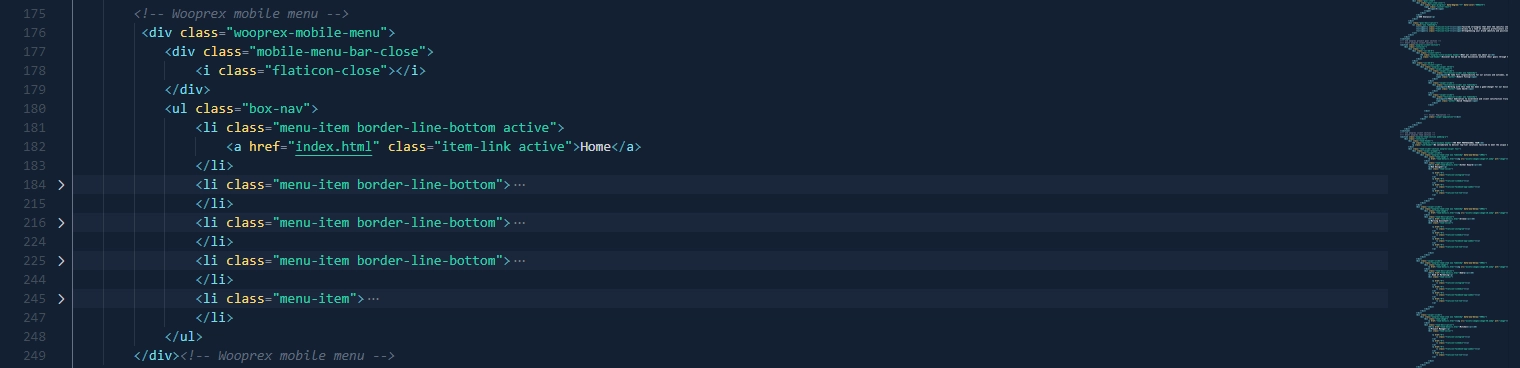
4.5. Changing Images
Change images like below:

5. Responsive Design & Media Queries
We have used CSS media query to responsive the site (assets/scss/_responsive.scss):
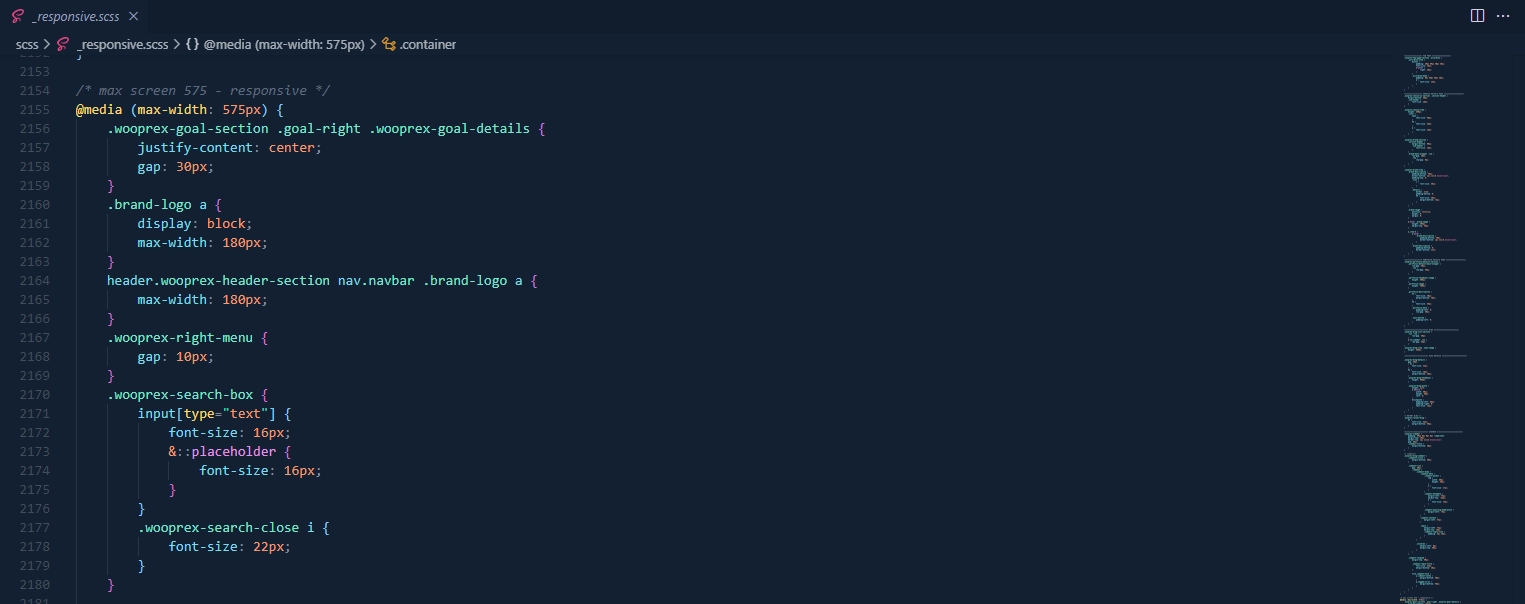
6. Sources & Credits
These things we have used to build our site:
7. Support
If you need assistance with installation, customization, or troubleshooting, feel free to reach out:
- Email: help@wooprex.com
- Documentation: Official Docs
- Live Chat: Available on our website during business hours.
For any issues, please provide detailed information, including error messages and screenshots, to help us assist you better.